
Documentation overview
One connected service response model
Virbula Oncall is organized around services. A team owns each service. Incoming integrations create or update service alerts, and the service escalation policy determines who is notified. Users, rotations, and schedules provide the reusable foundation for that policy.
Recommended configuration path
Build from responders to verified service response
Foundation setup
- Configure users. Add every responder, verify authentication, configure contact methods, and have each responder install and sign in to the Virbula Oncall mobile app on iOS or Android.
- Create teams. Assign members and administrators. Teams own the services and supporting configuration they are responsible for.
- Create rotations. Put responders in an ordered rotation and choose when the active participant changes.
- Create schedules. Define coverage windows and connect the appropriate rotations to each layer of scheduled coverage.
Service, alert, and escalation policy
- Create the service. Name the application, system, or business capability being protected and assign its owning team.
- Add incoming alert integrations. Configure the service-specific API, email address, monitoring integration, or webhook that will create and update alerts.
- Define the escalation policy. Add ordered steps that notify schedules, rotations, or users, with delays and repeat behavior appropriate to the service.
Verification
- Create a test alert. Use the service integration that production monitoring will use, rather than only creating an alert manually.
- Verify the policy workflow. Confirm the expected responder is notified, acknowledgement stops further escalation, and alert state remains consistent in the web and mobile apps.
Oncall server
Server overview
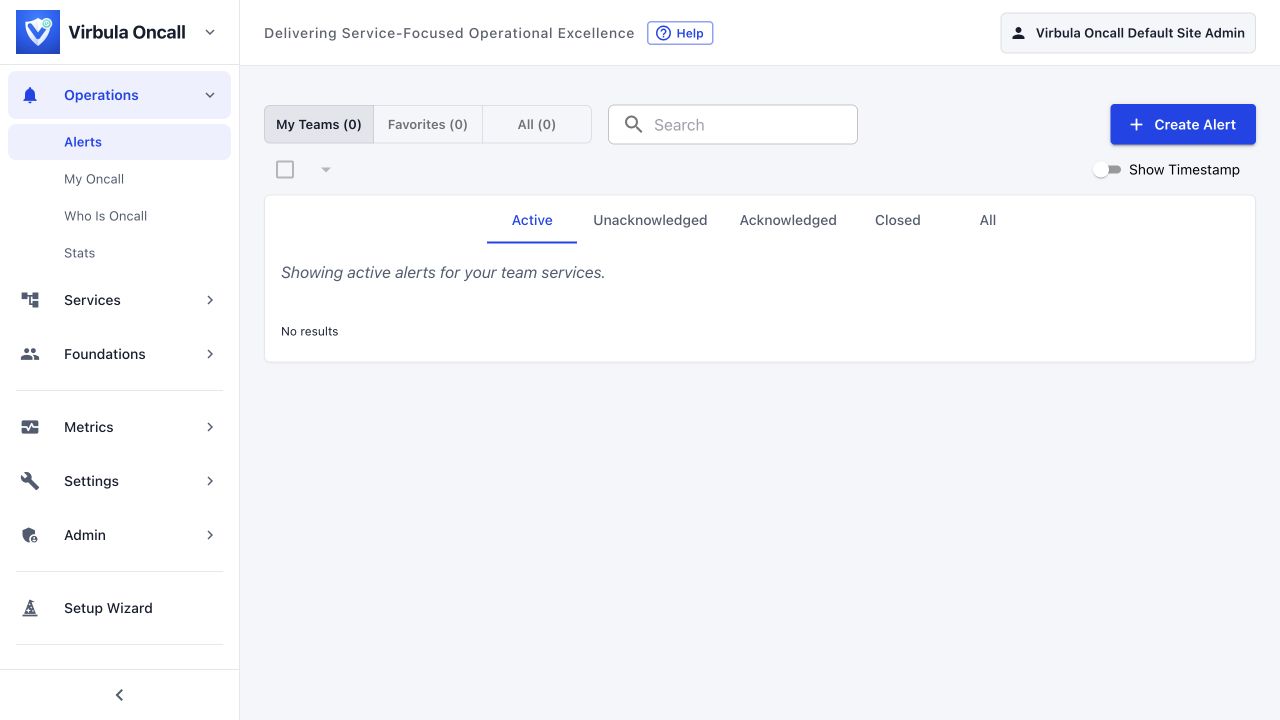
The server is the authoritative system for services, alerts, escalation state, on-call assignments, users, and audit history. Browser and mobile clients display that state and submit actions back to the server.
Foundations
Users and teams
Users
A user represents one responder. Configure the user’s sign-in identity, contact methods, and mobile registration before placing that user in a production rotation.
- Verify the account is active and the authentication source is expected.
- Add and test the contact methods the escalation policy may use.
- Confirm the user can sign in to the mobile app.
- Confirm notification permission and mobile registration status.
- Use overrides for temporary coverage changes instead of editing historical rotation design.
Teams
A team groups responders and owns operational resources. Team administrators can manage the team’s members and owned resources; site administrators retain site-wide control.
| Role | Typical responsibility |
|---|---|
| Team member | Participates in rotations and responds to alerts. |
| Team administrator | Maintains membership and team-owned service configuration. |
| Site administrator | Controls site-wide providers, authentication, backup, and administrative settings. |
Coverage foundation
Rotations and schedules
Rotations answer “who comes next?”
A rotation is an ordered participant list with a handoff cadence. Participants can be users and other supported assignment targets. The current rotation state identifies the active participant.
Schedules answer “who is on call now?”
A schedule applies one or more rules and rotation layers to time windows. Multiple rotations are useful when coverage changes by time of day, weekday, role, or follow-the-sun region.
Example: Payments primary coverage
Weekdays 08:00–18:00 → Day rotation
Nights and weekends → After-hours rotation
- Check the schedule preview before using it in a policy.
- Verify time zone and daylight-saving behavior for every coverage rule.
- Use temporary overrides for planned leave or short-term substitutions.
- Confirm the “Who is on call” view matches the expected responder.
Service management
Services and incoming integrations
A service is the protected application, system, infrastructure component, or business capability. It has one owning team and uses an escalation policy when an alert requires response.
Incoming alert paths
Integration verification
- Create a non-production test service owned by the intended team.
- Send a realistic payload through the exact production integration path.
- Verify service, summary, details, priority, and deduplication behavior.
- Update, acknowledge, close, and reopen the test alert where the integration supports those actions.
Response workflow
Escalation policies
An escalation policy is an ordered set of notification steps. Each step identifies one or more destinations and how long to wait before moving to the next step. The policy continues until the alert is acknowledged, closed, or the configured workflow ends.
Example policy
Step 1 → Notify primary schedule
Wait 5 minutes
Step 2 → Notify backup rotation
Wait 10 minutes
Step 3 → Notify service owner
Design guidance
- Start with the schedule that represents normal service ownership.
- Add a distinct backup destination instead of repeatedly notifying the same unavailable responder.
- Keep delays short enough for service impact but long enough to let a responder act.
- Test acknowledgement at every policy step and confirm later steps stop.
- Review policy destinations whenever team membership or coverage changes.
Alert operations
Alert lifecycle
The service requires attention and escalation may notify responders.
A responder has taken ownership; additional escalation stops.
The alert no longer requires active response.
The condition requires response again and escalation resumes according to server rules.
Alert state is server-authoritative. A mobile acknowledgement, browser action, or authenticated API request all update the same record. The alert log preserves state transitions and notification activity for review.
Deduplication
An integration can use a stable deduplication key so repeated events update the same alert instead of creating parallel alerts. Use a key tied to the monitored condition, not to a delivery attempt or timestamp.
Operational checks
- Confirm the alert is attached to the correct service.
- Check priority before acknowledging.
- Review notes and log entries for updates from monitoring systems or other responders.
- Close only when the condition no longer needs active response.
Outgoing notifications
Notification channels
Channels are enabled only when their underlying configuration is complete and healthy. A user’s contact method identifies where a notification is sent; policy destinations determine who should be reached.
| Channel | Use | Verification |
|---|---|---|
| Detailed alert notification and links. | Send a configuration test and verify delivery. | |
| SMS | Short time-sensitive notification. | Use an approved sending number and test the destination. |
| Voice call | Escalated phone notification with acknowledgement prompts. | Place a test call and verify response handling. |
| Push notification | Mobile alert delivery with service context. | Verify device registration and notification permission. |
| Slack | Direct or channel-based team notification. | Test the selected workspace destination. |
| Webhook | Structured delivery to another system. | Verify TLS, authentication, response status, and retry behavior. |
Protected administration
Authentication, API keys, backup, and recovery
Authentication
Choose the authentication method that matches your organization, configure a public HTTPS URL, and test administrator and responder sign-in before disabling another known-working method.
API keys
Prefer the narrowest scope that can perform the automation. Use a service integration for one service, a team key for team-owned services, and a site key only for approved site-wide workflows. Rotate keys after suspected exposure.
Export and backup
- Use configuration export/import for portable application entities and controlled deduplication.
- Use database backup for complete database recovery.
- Store backups outside the application host and test restoration regularly.
- Protect encryption keys and provider credentials independently from database backups.
Upgrades
- Read the release notes and confirm platform prerequisites.
- Create and verify a current backup.
- Deploy during a controlled maintenance window.
- Verify readiness, alert creation, escalation, and notification channels.
- Keep rollback artifacts until verification is complete.
Virbula Oncall Mobile
Mobile overview
The iOS and Android app gives responders a focused view of active alerts and on-call responsibility. The server remains authoritative: the app securely registers the device, receives push notifications, refreshes alert state, and sends acknowledgement actions back to the company’s Virbula Oncall server.
Mobile setup
Install and sign in
- Install the Virbula Oncall app. Use the approved iOS or Android distribution provided by your organization.
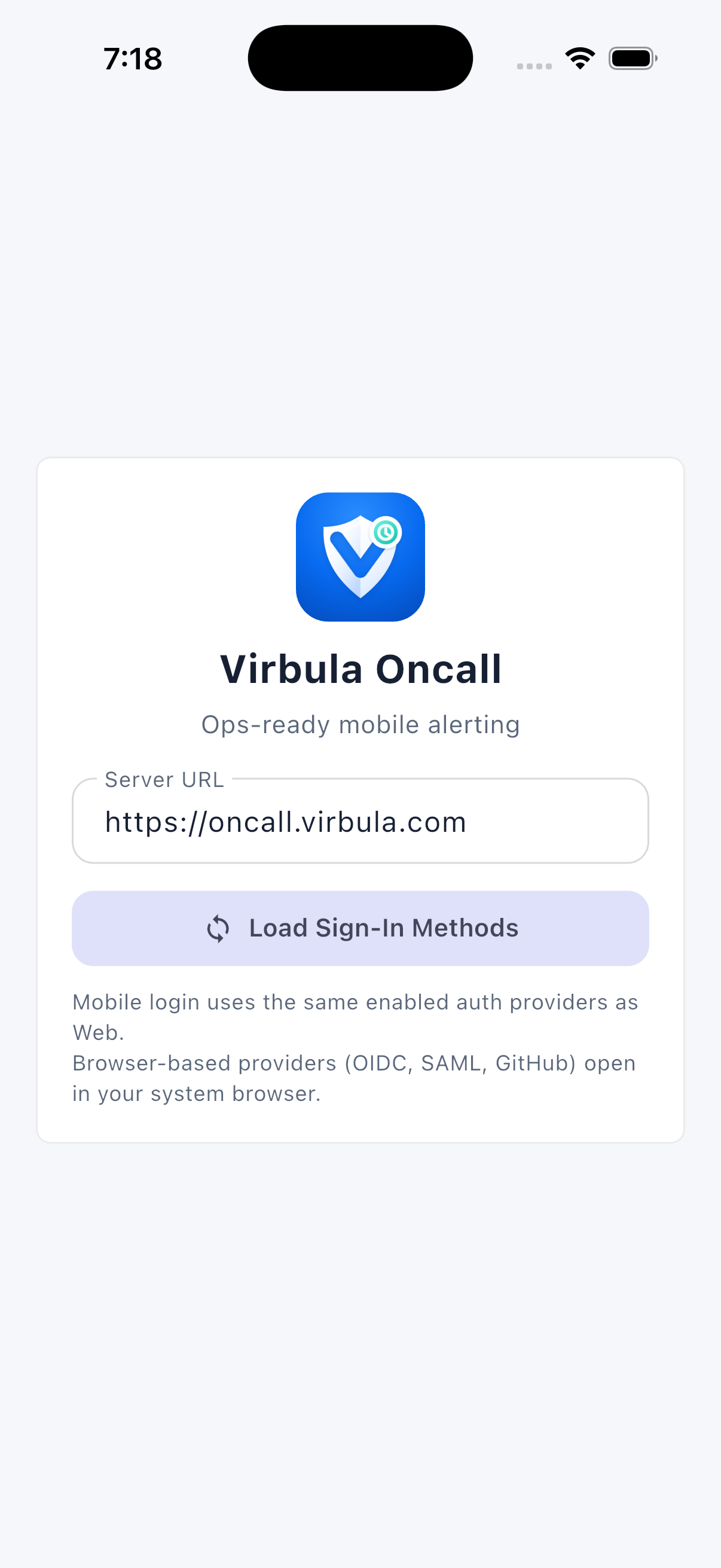
- Enter the company server URL. Use the public HTTPS address supplied by your administrator. Confirm the hostname before entering credentials.
- Sign in. The app uses the authentication methods enabled by the company server. Complete browser-based sign-in when directed.
- Allow notifications. Grant notification permission and, on iOS, allow time-sensitive notifications when prompted.
- Verify readiness. Confirm the app reports successful server connection, device registration, push notification readiness, and in-app alerts.
Device readiness
Notification permissions and delivery
iOS
- Enable notifications in iOS Settings.
- Enable sounds, badges, and Lock Screen presentation as appropriate.
- Allow time-sensitive notifications for prompt presentation.
- Do not force-quit the app during an on-call shift.
- Review Focus settings so approved time-sensitive alerts can appear.
Android
- Enable notifications for the app and its alert channel.
- Allow sound, vibration, and Lock Screen presentation as appropriate.
- Exclude the app from aggressive battery restrictions when company policy allows.
- Keep background data available during an on-call shift.
Responder workflow
Receive and acknowledge an alert
- Open the notification. Review priority, service, summary, and the current alert state.
- Inspect context. Read details, recent log entries, and service ownership before taking action.
- Acknowledge when you take ownership. The app submits the action to the server and confirms the resulting server state.
- Coordinate the response. Add notes or use your organization’s connected collaboration workflow while remediation is underway.
- Close after resolution. Confirm the monitored condition is resolved and the alert no longer requires active response.
Coverage awareness
See who is on call
The mobile on-call views let responders check coverage by service, team, or schedule. Use the service view first when diagnosing an alert because it connects ownership, policy, and current responder context.
- Check your upcoming assignments before an on-call shift.
- Verify temporary overrides appear correctly.
- Contact the team administrator if the server shows an unexpected assignment.
- Do not rely on a cached screenshot or calendar entry as the authoritative current assignment.
Mobile troubleshooting
When alerts or actions do not behave as expected
| Symptom | Checks |
|---|---|
| Cannot sign in | Verify the server URL, HTTPS certificate, account status, and configured authentication method. |
| Push not enabled | Check OS permission, server mobile configuration, device registration, and network access. |
| Notification arrives silently | Check sound, Focus or Do Not Disturb, notification-channel settings, and device volume. |
| Alert list is stale | Refresh, verify connectivity, and confirm the company server is reachable. |
| Acknowledgement fails | Reopen the alert, confirm current state and connectivity, then retry once. |
| Wrong on-call assignment | Check schedule time zone, rotation state, overrides, and the server’s Who is on call view. |
When filing a support ticket, include the operating system, app version, company server URL, approximate time, alert reference, and a description of the observed result. Never include secrets.
Go-live checklist
Verify the complete path before production
- Public HTTPS and server readiness checks are healthy.
- At least two site administrators have verified access.
- Every production responder has working authentication and contact methods.
- Every on-call responder has installed, signed in, and enabled mobile notifications.
- Schedules, rotations, time zones, and overrides have been reviewed.
- Each service has the correct team owner and escalation policy.
- Each production alert integration has passed an end-to-end test.
- Email, SMS, voice, push, Slack, and webhook channels in use have been tested.
- Acknowledgement stops escalation and close/reopen behavior has been verified.
- Backups run outside the application host and a restoration test has succeeded.
- Monitoring covers the server, database, and enabled notification dependencies.
Virbula Support
Getting help
Search this guide first, then file a support ticket with the affected product area, urgency, instance URL, expected behavior, observed behavior, and approximate time.